Evernote Migration Completeness Check: What to Do When 536 Notes Become 20
When 536 Evernote notes appear as 20 after import, stop guessing. Use a repeatable completeness check to find excluded notebooks, duplicate handling, archived files, and genuinely missing notes.

Why the Counts Do Not Match
A destination app may count only imported Markdown files, while Evernote counts notes in every notebook, including trash, stacks, shortcuts, or notebooks excluded by a filter. Some importers also merge duplicate titles, skip unsupported resources, or hide files in an attachment folder.
That means “536 became 20” is a warning, not a diagnosis. Before repeating the export, identify which number is being counted and whether both sides use the same definition of a note.
Do not delete the source library after seeing a smaller number. Keep the original account, local database, and raw export until you can explain the difference.
Create a Source Inventory
Start with a source-side inventory that you can save as a CSV, spreadsheet, or plain text file. You do not need every field to begin; you need stable identifiers and enough context to trace a discrepancy.
Useful note fields
- • Note title and notebook
- • Created and updated dates
- • Tags and unique identifier
- • Whether the note is in trash
- • Attachment and internal-link counts
Useful migration fields
- • Export batch or filter used
- • Output filename or path
- • Destination note URL or ID
- • Verification status
- • Reason for any exception
If you cannot export a formal inventory, make one from a sample of notebooks first. The goal is to turn an anxious count mismatch into a list of traceable records.
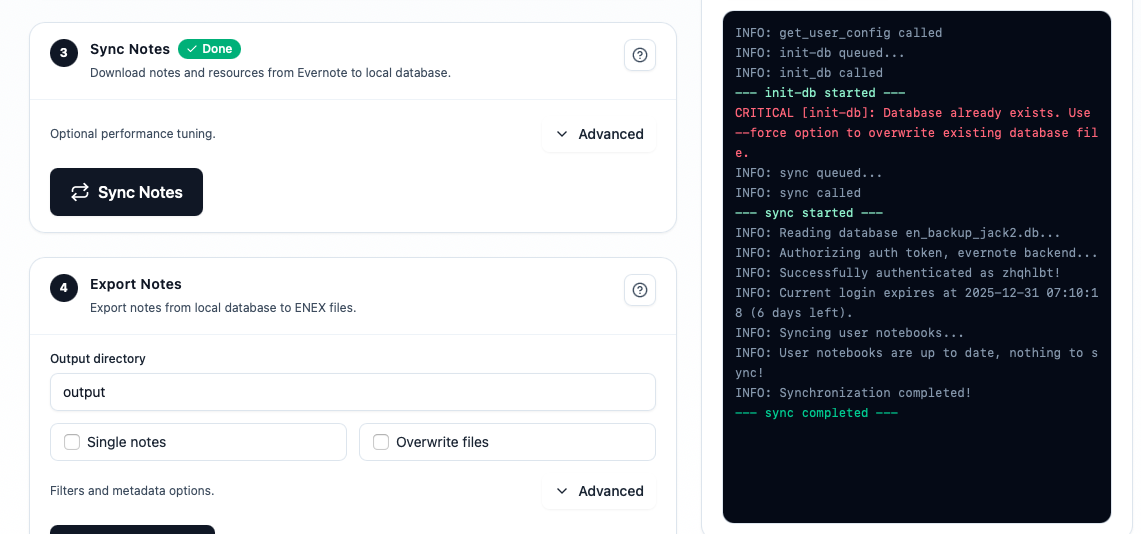
Check Export Filters and Batches
The most common explanation for a tiny destination count is an export scope that was smaller than expected. Review each setting before assuming the importer lost data.
- Was a single notebook or tag selected?
- Were trashed notes excluded?
- Was an “updated after” date applied?
- Did a batch overwrite files with the same name?
- Were resources or notes without an export date filtered out?
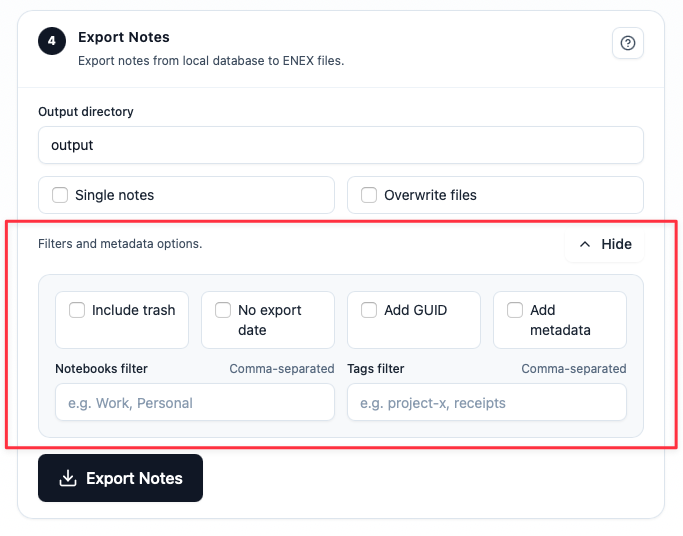
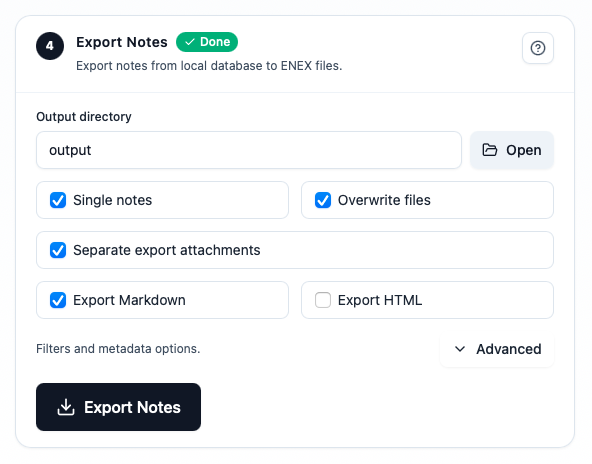
Repeat the export with a deliberately broad scope into a new directory. Keep each batch separate and name it with the date and filter, so a later comparison does not depend on memory.
Reconcile Notes, Attachments, and Links
A note count alone is not enough. Reconcile the objects that make a note useful:
| Object | Compare | Common false alarm |
|---|---|---|
| Notes | Unique IDs or normalized titles | Two notebooks contain the same title |
| Attachments | File count, type, and byte size | Files live in a separate folder |
| Links | Internal, external, and resource links | URL format changes after import |
| Tags | Distinct tag names and note coverage | Destination hides unused tags |
Use IDs where possible. Titles are helpful for humans but are not reliable keys when notes are duplicated, renamed, or stored in different notebooks.
Run a Known-Note Sample Test
Choose 10–30 notes whose titles and contents you recognize. Include an old note, a recent note, an attachment-heavy note, a note in a less-used notebook, and one with a distinctive phrase you can search for.
- Find each note in the local source database.
- Find its exported file and record the path.
- Open the file and search for a distinctive sentence.
- Open the imported note in the destination app.
- Check attachments, links, tags, and formatting.
- Mark the record pass, warning, or fail.
Search is evidence. A note that appears in a file list but cannot be opened or searched in the destination is not fully migrated yet.
Write a Migration Report
End with a short report that another person—or you six months from now—can understand. Include:
- Source note, notebook, attachment, and tag counts
- Export formats, filters, dates, and output directories
- Destination counts and how they were measured
- Sample results and unresolved exceptions
- Where the raw ENEX or HTML preservation copy is stored
If the destination has fewer notes for an explainable reason—such as archived duplicates—write that reason down. If you still cannot account for a note, keep the source and repeat only the affected batch instead of starting over blindly.
FAQ
Does a lower file count always mean notes were lost?
No. Filters, duplicate handling, trash exclusions, and separate attachment folders can all change the number. Reconcile stable identifiers and sample notes before concluding that data is missing.
Should I export everything again into the same folder?
Use a new directory for each test or batch. Reusing a folder makes overwrites and stale files look like successful exports.
What is a reasonable acceptance rule?
Require every high-value note to be traceable, every critical attachment to open, and every known internal link to have a documented destination. Minor formatting differences can be accepted only if you record them.
The Practical Takeaway
A surprising note count is the start of an investigation, not proof of failure. Build a source inventory, audit export scope, reconcile attachments and links, test known notes, and write down exceptions. Once every important record has a traceable path from Evernote to the destination, you can scale the migration without guessing.
Download Evernote Backup ToolRelated guides
Evernote Export Missing Notes? Why Your HTML File Count Doesn't Match
An export can report success while the number of HTML files on disk looks too low. Learn how to investigate duplicate titles, filename collisions, export settings, and OneDrive workflows before assuming notes are missing.
How to Back Up Evernote Before Changing Apps or Plans
Build a local copy first, verify it, and only then change your workflow. That order removes most of the avoidable risk.
How to Back Up Evernote Properly: 3-2-1 Copies and Restore Testing
A folder full of files is not proof that your Evernote data is safe. Build several copies, keep the right export formats, and test one real restore before you need it.