Evernote Export Button Missing on Windows: What to Do
When the Export button disappears from Evernote, the problem is usually the app version, the selected view, or the size of the export—not your notes. Here is a safer path from first checks to a verified local backup.

Why the Export Option Disappears
Evernote users often describe the same Windows problem: right-clicking a note does nothing, and the three-dot menu has no Export command. That does not necessarily mean your notes are locked. Export controls can vary by app version, selection, account state, and the view you are currently using.
Do not start by uninstalling Evernote. First preserve access to the account and make a copy of anything that is already available offline.
There is also a second issue: even when the command is visible, a large export can time out or produce a file that is difficult to inspect. A missing button and an unusable export are different symptoms, but they need the same principle—keep an independent copy and verify it before making account or app changes.
Quick Checks in Evernote for Windows
1. Check the selection and view
Open a notebook, select one ordinary note, and then open its context menu. Test a single note before attempting a notebook or an entire account. Some commands appear only when a note is selected in the note list.
2. Update, then restart
Make sure the Windows client is current, restart it, and sign in again. If the account is stuck in a limited or partially synced state, allow synchronization to finish before testing export.
3. Test a small note without attachments
A text-only note is a useful diagnostic. If it exports but a PDF-heavy notebook does not, the problem is probably export size or attachment handling rather than the menu itself.
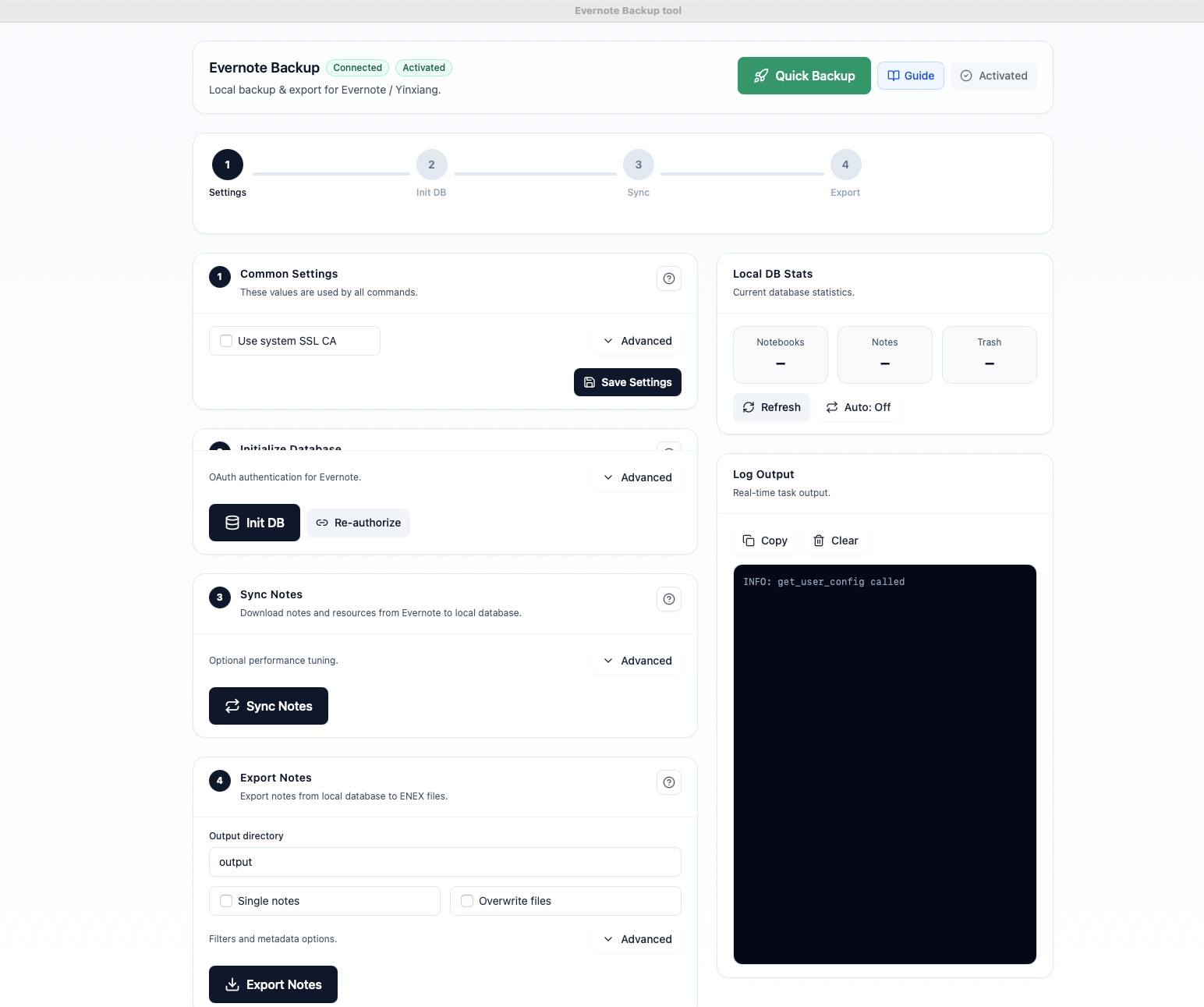
If the built-in command remains unavailable, stop repeating the same click path. Move to an independent local-backup workflow instead.
Choose the Right Backup Path
ENEX
Use when you want to preserve Evernote-oriented structure or test an import into another note app.
HTML
Use when you need a readable, offline archive that opens in a browser and can be searched.
Markdown
Use when your next home is Obsidian, Logseq, Git, or another plain-text workflow.
You do not have to choose only one. For a Windows user who is unsure what will work, an ENEX copy for recovery plus an HTML copy for reading is a sensible minimum. Add Markdown when migration is part of the plan.
Create a Local Backup with Evernote Backup Tool
Evernote Backup Tool separates synchronization from export. First download your notes into a local database; then export that local copy as many times as needed. This is useful when the Evernote menu is missing or a first export needs to be repeated.
- Connect: initialize the local database through Evernote OAuth.
- Sync: download notes, notebooks, tags, and resources to your PC.
- Choose a folder: use a dedicated folder with enough free space for attachments.
- Select a format: choose ENEX, HTML, Markdown, or more than one.
- Export: start with a small notebook, then continue with the full library.
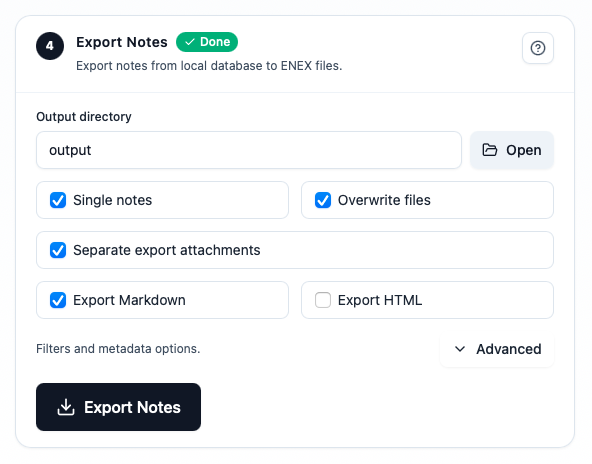
For a large Windows library, keep the local database outside the export folder. That gives you a stable source for re-exporting and prevents a partial export from being mistaken for the backup itself.
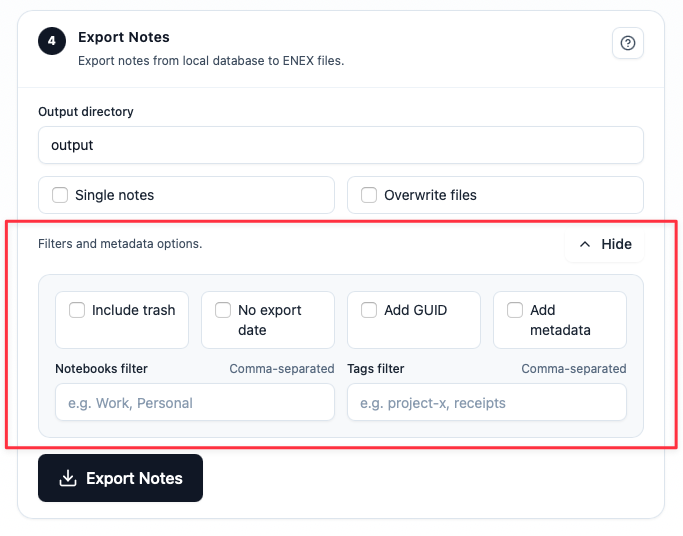
The Advanced panel lets you narrow by notebook or tag and include metadata when your migration workflow needs it. Filters are especially helpful when a full export is too large to diagnose in one pass.
Verify Before You Delete Anything
A successful progress bar is not proof of a usable backup. Run this short acceptance test:
- Compare the number of exported notes with the local database count.
- Open notes from several notebooks, including one with Japanese or other non-English text.
- Open an image, PDF, and office document from the exported attachment folder.
- Search the HTML archive for a distinctive keyword and a tag.
- Confirm that filenames and relative attachment links still work after copying the folder.
Keep the original until this passes. Once you can open and search the copy on another drive or computer, you have a backup—not just an export attempt.
FAQ
Can I export everything directly to a USB drive?
Yes, if the drive has enough space and a stable connection. For a large library, sync to a local database first and copy the verified export to USB afterward.
Which format is easiest to open without Evernote?
HTML is the most convenient for browsing in a regular browser. Markdown is better for editing, while ENEX is better for Evernote-compatible imports.
Will a local backup preserve Evernote Tasks?
Test task-heavy notes separately. Task status and task-specific fields can behave differently from ordinary note text, so verify completed and open tasks before choosing a migration destination.
The Practical Takeaway
If Evernote for Windows does not show an Export button, do not let the missing menu become your only backup plan. Check the view, update the client, and test a small note. If the command is still unavailable—or if large exports are unreliable—create a local database, export to the format that matches your goal, and verify the result on independent storage.
Download Evernote Backup ToolRelated guides
Evernote Export Missing Notes? Why Your HTML File Count Doesn't Match
An export can report success while the number of HTML files on disk looks too low. Learn how to investigate duplicate titles, filename collisions, export settings, and OneDrive workflows before assuming notes are missing.
How to Back Up Evernote Before Changing Apps or Plans
Build a local copy first, verify it, and only then change your workflow. That order removes most of the avoidable risk.
How to Back Up Evernote Properly: 3-2-1 Copies and Restore Testing
A folder full of files is not proof that your Evernote data is safe. Build several copies, keep the right export formats, and test one real restore before you need it.